Virtual Medieval Pilgrimage Documentation Printed Guide
This document was produced from online documentation that is regularly updated. For an up-to-date version, please visit
digitalarcplatform.github.io/documentation
Generated May 5, 2026
Quick Start Guide
We’ll outline the process of creating a virtual pilgrimage, start to finish, in really rough simple terms here so that the more detailed documentation that follows makes more sense.
You’ll
- Explore the pilgrimages that are in our template site and line them up with local landmarks. If you can’t find a landmark to line up with, or you don’t want to use that pilgrimage, make a note of the pilgrimages you want to delete.
- Learn some basic terminology (static vs dynamic websites)
- Get to know Github, a company that supports free website hosting, and Jekyll, the software that Github runs to make that hosting work
- Do some setup work to get a new Github site configured right, so that your community name, colors, and other information are visible to web site visitors.
- Use the information you collected in step one to delete the pilgrimages you don’t want ot use
- Customize the local information that goes with each pilgrimage to make your own pilgrimage.
Before you delete the sample items, make your first item .md file or else the _items folder will disappear.
Looking for a printable version of the full process? Click Here
Publishing Your Site
Understanding Websites
What is Github?
What is Github?
The short version? Google Docs for programmers
First warning: don’t pay attention to any scary GitHub YouTube videos. We’ll provide simpler ways to use GitHub that don’t require you to be a programmer.
Like Google Drive or iCloud, Github offers a free place to store files online and collaborate on their contents. The difference is that Github is especially good at storing the files that run computer-oriented projects, and at tracking the individual lines of a file, so that many people can make changes to single document and have all of their changes preserved.
Github also offers a built-in place to built web sites using static-site content management systems like Jekyll (which is what we’re using right now to make this documentation site).
GitHub allows for:
- Tiny revisions made by lots of people to keep things from breaking
- Many undo options when changes break things
All of these things make Github a great place to host websites for free.
Navigating GitHub
Programmer vocabulary that will help
- Commit instead of Save. saving is saving a whole document all at once
- Commits: each set of saved changes by each individual person. Lets you see and undo only one small change at a time.
- Branch instead of Version. Branches can contain different versions of the same file simultaneously, which allows GitHub to highlight conflicts and help you resolve them.
Tips and Tricks for Using GitHub
Consider making an individual account for yourself using a personal email and a group account for your community using a group-shared email. Then
- Log in to GitHub using your group account
- Go to Settings -> Collaborators -> Add People
- Add your individual-account username
- Log out of your group account
- Log into your individual account
You can create a repository using your individual account, with the same contents as your group account. Use that as a playground to test changes before you make those same changes to your group account.
Because you used the “Collaborator” setting to add your individual account to your group account, you’ll be able to make changes to both when you’re logged in using your individual account.
What is Jekyll?
What is Jekyll?
Jekyll is what web site developers call a static-site content management system (CMS).
The “content management system” part is easy to understand. Web site authors every where use content management systems like Jekyll and WordPress to build easy-to-maintain web sites without needing extensive technical skills.
To make the static part of “static-site CMS” easier to understand, it helps to compare static-site CMS to dynamic-site CMS solutions.
Dynamic sites vs static sites
Dynamic sites
Some web pages are built on demand. That is, when you click on a link, a series of computer programs and different computers work together in real time to combine content, design and computer code. This web page is created on the fly and sent specifically to the site visitor who requested it.
Dynamic CMSs makes it more efficient for web developers to re-use and quickly update the parts of a web page that are common across a whole web site–navigation bars, logos, headers and footers–without generating every single page on the site from scratch each time something changes.
Dynamic CMSs also come with form-based writing and design tools–that is, you can point and click to make text bold instead of using complex HTML.
Static sites
Static-site CMSs also allow the re-use of common web site elements like logos and navigation.
The primary difference is that static-site content management systems–like this one–create all of the webpages a visitor might see not when a visitor visits but when a web site author changes something.
Static site generators, like Jekyll, often use text-based formatting and design rather than point-and-click writing tools. However, the formatting commands are simplified and easier to work with. For instance, to make text bold, you put two asterisks around a word or sentence: **bold**.
Pros and Cons of Dynamic Sites
Because a web site visitor triggers the generation of a page when they visit, it can be easier for a web site administrator to manage very large sites with hundreds of thousands of pages of content–like newspapers or university web sites.
Dynamic sites are subject to hacking, though. If a hostile computer user finds their way into the database or design settings of a dynamic web site, they can change things, add viruses, or break the whole site. Large companies with lots of resources can afford to spend the time and money to constantly monitor dynamic sites for intruders with bad intent.
Static sites are far less subject to hacking, which makes long-term maintenance easier. Sites like this one, which use a program called Jekyll to generate all of the page elements, can still be updated regularly. The downside is that each change requires that the entire site be regenerated, which can take time for sites with more than a few hundred pages.
Why Choose a Static Site?
Unless you have lots of time and money to check on your site daily, static sites are easier to maintain.
If you don’t have thousands of pages of content, static sites are almost as easy to update and change.
Dynamic sites are also often more costly than static sites to maintain because dynamic sites require several different kinds of web services integrated together, to function properly, while dynamic sites only require a single, simplified kind of web service.
For people who want easy site maintenance and are willing to learn a few basic skills, static sites are much easier in the long run.
What will we do in this section?
Creating a web site using Github Pages has a few technical steps.
This section covers the individual steps you’ll need to take to
- Create a Github account
- Configure your Github account properly
- Create and configure a project repository, or storage space, for your community-archive files
- Add item information, photos and other parts of your oral histories (like audio files and transcripts)
If you’re comfortable with GitHub and technology in general
Skip to our Expert-Mode setup instructions. Follow those 5 condensed steps to make a copy of our example site and customize a few things for your community.
If you’re not comfortable with GitHub or are new to technology
Proceed through the individual sections listed below in “Setting Up Your Site” table of contents (or the links in the left-hand navigation area underneath the “Setting Up Your Site” link) one by one.
Each of these steps will break creating a website at Github into smaller, more manageable activities.
Learning Github As You Go
As you work through these steps, you might get lost in Github’s user interface. These three strategies will help you learn Github as you create your site and make changes to it.
- The <> Code tab (left side of the navigation bar underneath the little Github cat icon). Think of this “Code” tab as the “Home” button for the files that make your site work.
- Actions tab (middle of the navigation bar underneath the little Github cat icon). Think of this “Actions” tab as a status update. Each time you make a change to one of the files in the “Code” tab, a workflow will run that processes those changes and turns them into pretty web pages. The Actions tab has a running list of whether that workflow has completed. A yellow icon means the workflow is still running, so your changes aren’t public yet.
- Our troubleshooting documentation page (in the left-hand navigation of this documentation site). There are several common things that people run into when they’re first using Github. If you get lost, if your site isn’t publishing as you expected, or if the Actions tab shows you a red-icon “build failed” message, check for one of these common issues.
Create a Github Account
Before you get started
Get to know the files in our example site, which has example items of several different types–photos, document scans, videos–so you don’t have to start from scratch.
Create a Github Account
Before you create your account, it helps to understand how Github usernames will be seen by your website visitors.
Your Github username will be included in the website address people will use for to find your community, so choose it carefully.
- Example Github username: newcitycommunityarchive
- Example community-archive website address: newcitycommunityarchive.github.io
The “free” option will mean people can see, but not edit, the files that run your web site.
Ready? *Create a new Github.com account by following the directions here**
Create a project inside your new account
GitHub uses “repository” to describe the place where all of the files for a single project are stored.
You’re going to copy a repository that we’ve already made, so that you have example files to work from rather than having to create files from scratch.
- Visit
https://github.com/DigitalArcPlatform/template
- Press the “Use this template” button
- Choose “Create a new repository”
- Name your repository
yourusername.github.io (where yourusername is the username you chose when you created your Github account). In our example, where the username is newcitycommunityarchive, you would name your repository newcitycommunityarchive.github.io. Your github username must be exactly the same as the first part of your repository name, and “.github.io” must appear after your repository name.
- Set the new repository to be Public. This doesn’t mean everyone who sees your files can edit them. It means that people can see both the pretty version of your website and the files that Github uses to build the pretty web site, but only you or the people you give your log-in to can make changes.
Research your configuration choices
Your new “repository” or “place where all your files are stored” _config.yml file contains settings for exhibit info, font, and color choices that affect the entire web site.
The next few sections of documentation will cover each one of these things one by one, but reading through this first before you start trying to make changes will help you get your bearings.
**If you get lost look for the Code button toward the **
# Get to know your _config.yml file
One file in your newly copied web sit controls a lot of the information on the site: _config.yml. You can generate one at https://digitalarcplatform.kalanicraig.com/MakeConfigFile/
- Gather information about your community, that includes
- What you want to call the site
- Who the main contact person will be
- How do you want your site to look?
- Put these pieces of community info into our “Configuration File Generator” at https://digitalarcplatform.kalanicraig.com/MakeConfigFile/
Apply your configuration choices
Once you’ve downloaded your config file:
- Find the “Code” navigation tab in your new Github repository.
- Find the
_config.yml from the list of files in your repository. All of the main settings for your site are in this file.
- Look for the pencil icon on the right-hand side of the page. Press it to enter “edit” mode.
- Select all of the contents of the _config.yml file in the Github editor.
- Open the config file you generated on our web site (You can use Word or Google docs or Notepad).
- Select all of the contents of the file and use the “Copy” command (CTRL-C on Windows or ⌘-C on Mac) to put that text into your clipboard.
- Switch back to the _config.yml file in Github.
- Replace the contents of the config file from our template repository with the contents of the downloaded config file by using the “Paste” command (CTRL-V on Windows or ⌘-V on Mac)
- Scroll down and look for the green “commit” button. Press it to save your configuration file.
- Press the green “Commit” button on the pop-up screen.
Site Name and Authors
Site Name and Authors
In your _config.yml, you’ll see a reference to the site name and author.
Most of the files you create will be “authored” by your community-archive group.
The first field, author, is a short-hand computer-friendly nickname for your group. It shouldn’t have any spaces or special characters
The second field, authorname, is the name that displays to your public audiences. If you have a quote character (“) in your group name, that can cause problems because the author name itself is surrounded by quotes. Either change the quote in your author name to a single apostrophe (‘), or change the double-quote characters around the whole authorname field to single apostrophes.
author: "YourGroupNickName"
authorname : "Kalani Craig"
Text and Images on the Home Page
Text and Images on the Home Page
Main Site Description
The main text on the home page can be customized by editing the ‘index.md’ file in the ‘pages’ folder.
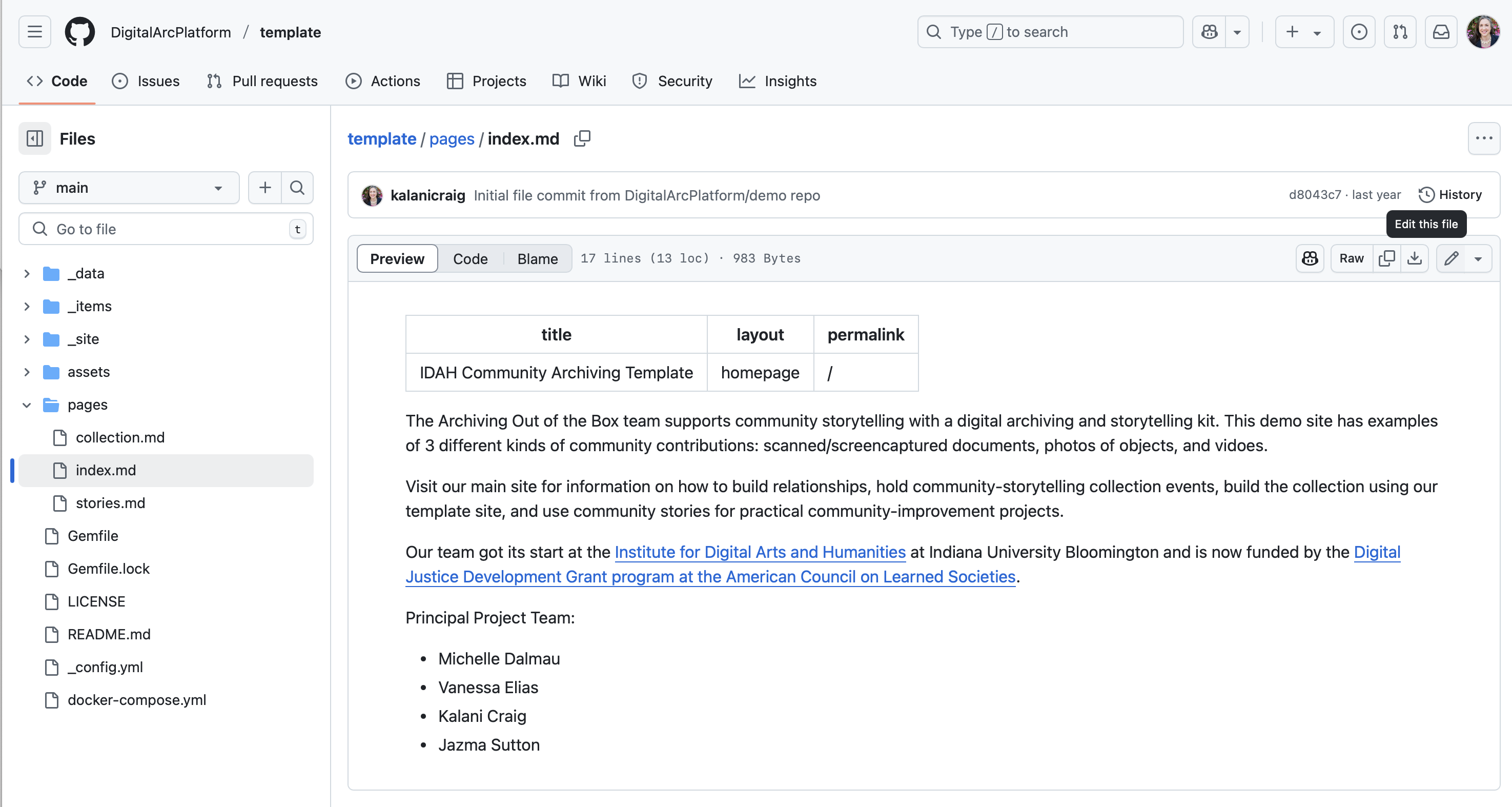
- Find the ‘pencil’ icon in the upper-right-hand corner. Press it to switch to “edit” mode.
- Note the information at the top of the page separated by 3 hyphens (“—”). This information controls the page title.
- Change the page title to match your pilgrimage. Avoid using quotes “ or apostrophes ‘
- Change the text in the main part of the page. The main part of the page comes after the second set of three hyphens (“—”). On the main “home page”, that text starts with “The Archiving Out of the Box team” and ends with the project team’s names.
- Scroll down to the bottom and look for the green “Commit” button to save your changes.
Typeface and Colors
Typeface and Colors
Preset font options
Archivo Narrow

Baloo 2

Quattrocento

Raleway

Roboto

Slab

Source

Customizing fonts
This theme uses 3 fonts: a headline font, a body font, and a monospace font for code blocks/syntax highlighting.
You can create your own font set by creating a new font file in the _sass/fonts/ folder and importing a set of fonts to replace the values there. The collection at Google Fonts is a good starting point.
Pre-set color options

Dusky Purple and Olive Green
Lavender and Red
Leaf Green and Brown
Marigold
Navy
Red
Tan
Teal
Expert-Mode Quick Account Setup
A 5-step web-site creation overview
If you are comfortable with Github and technology in general, this quick 5-step overview will lead you through creating an account, configuring your account, and publishing to the web.
If you get stuck anywhere, the “Setting Up Your Site” and “Troubleshooting” sections will help you identify common issues quickly.
Step 1: Create an account
Create a new Github.com account by following the directions here
- Your Github username should be the name people will search for to find your pilgrimage. For instance, a community group called “New City Pilgrimage” would choose the username “newcitypilgrimage”
- The “free” option will mean people can see, but not edit, the files that run your web site.
Step 2: Create a project inside your new account
- Visit
https://github.com/Virtual-Medieval-Pilgrimage/pilgrimage-template
- Press the “Use this template” button
- Choose “Create a new repository”
- Name your repository
yourusername.github.io (where yourusername is the username you chose when you created your Github account). In our example, where the username is newcitypilgrimage, you would name your repository newcitypilgrimage.github.io.
- Set the new repository to be Public. This doesn’t mean everyone who sees your files can edit them. It means that people can see both the pretty version of your website and the files that Github uses to build the pretty web site, but only you or the people you give your log-in to can make changes.
The _config.yml file contains settings for exhibit info, font, and color choices that affect the entire web site.
- Gather information about your pilgrimage, that includes
- What you want to call the site
- Who the main contact person will be
- How do you want your site to look?
- Put these pieces of community info into our “Configuration File Generator” at https://vmp.kalanicraig.com/MakeConfigFile/
Once you’ve downloaded your config file:
- Find the “Code” navigation tab in your new Github repository.
- Find the
_config.yml from the list of files in your repository. All of the main settings for your site are in this file.
- Look for the pencil icon on the right-hand side of the page. Press it to enter “edit” mode.
- Select all of the contents of the _config.yml file in the Github editor.
- Open the config file you generated on our web site (You can use Word or Google docs or Notepad).
- Select all of the contents of the file and use the “Copy” command (CTRL-C on Windows or ⌘-C on Mac) to put that text into your clipboard.
- Switch back to the _config.yml file in Github.
- Replace the contents of the config file from our template repository with the contents of the downloaded config file by using the “Paste” command (CTRL-V on Windows or ⌘-V on Mac)
- Scroll down and look for the green “commit” button. Press it to save your configuration file.
- Press the green “Commit” button on the pop-up screen.
Step 4: Customize Each Pilgrimage
Each item in the pilgrimage has a file associated with it in the _items folder.
- Open the
_items folder and look at one of the example items. Get a feel for what you need to gather about each item.
- Each pilgrimage should have its own unique filename.
- Each pilgrimage will have information at the beginning of the file that you can edit to fit your local pilgrimage.
Step 5: Set up your project to publish to the web
- Find the “Settings” link on the top-right bar of your repository’s info page
- Find the “Pages” link on the left-hand side of your repository’s settings page.
- Look for a text box with a green or blue background at the top that says “Your site is published” or “Your site is ready to be published”.
- If you see a green box, you’re ready to go. Click on the link!
- If you see a blue box, wait 5 minutes and reload the page. It should be green now, and you can click on the link.
- If you don’t see either message, look for the drop-down menu that says “Branch”, choose the “main” branch and press “Save” to publish your site in Github Pages.
- Follow the publication process in real time by looking for the “Actions” tab (in the same line as the “Code” tab near the top of the Github page)
- Click on Actions.
- Find the “All Workflows” header.
- Each time you make a change to your site, you’ll see a “workflow run” line for that change. To the left of the line for that workflow run, there’s an icon.
- Green icons mean the publication step ran and everything should now be visible at your site’s URL.
- Yellow icons mean the publication step is still running.
- Red icons mean the publication step ran into some issues. Visit the Troubleshooting section of the documentation for guidance on how to use the Actions tab to help figure out what’s gone wrong.
Telling Github Pages to Make Your Site Public
Now we need to tell Github to publish your project to the web.
- Find the “Settings” link on the top-right bar of your repository’s info page
- Find the “Pages” link on the left-hand side of your repository’s settings page.
- Look for a text box with a green or blue background at the top that says “Your site is published” or “Your site is ready to be published”.
- There’s no clear “publish me” button on this page. Github assumes that it should publish your site because of how your repository was named, and the fact that you’ve now clicked on the Pages option.
- If you see a green box, you’re ready to go. Click on the link!
- If you see a blue box, wait 5 minutes and reload the page. It should be green now, and you can click on the link.
- If you don’t see either message, look for the drop-down menu that says “Branch”, choose the “main” branch and press “Save” to publish your site in Github Pages.
- Follow the publication process in real time by looking for the “Actions” tab (in the same line as the “Code” tab near the top of the Github page)
- Click on Actions.
- Find the “All Workflows” header.
- Each time you make a change to your site, you’ll see a “workflow run” line for that change. To the left of the line for that workflow run, there’s an icon.
- Green icons mean the publication step ran and everything should now be visible at your site’s URL.
- Yellow icons mean the publication step is still running.
- Red icons mean the publication step ran into some issues. Visit the Troubleshooting section of the documentation for guidance on how to use the Actions tab to help figure out what’s gone wrong.
Customizing the Jekyll Theme
Customizing a color palette
This theme uses 5 colors:
- Main text color and nav-bar background color
- Link and highlight color
- Main background color
- Accent background color
- Link-hover color and footer-link color
You can create your own palette by creating a new palette file in the _sass/colors/ folder and assigning your own values to the color values there. These palettes offer a guide for choosing colors with appropriate contrast, and the Coolors tool is a good platform for refining the colors.
Creating Additional pages
Creating Additional Pilgrimages
You can make new pilgrimages by copying one of the pages in the _items folder.
- Open the file you want to copy and use the “Raw” button to load it.
- Select-all and copy the contents of the file.
- Create a new file in the
_items folder by finding the “Add a File” button.
- Paste the contents of the file you copied into this new file and update the necessary elements of the new file.
Making Your Site Public
GitHub has a feature called “Pages” that will turn any Github site into a public website.
Turning that feature on is very easy:
- Find the “Settings” link on the top-right bar of your repository’s info page.
- Find the “Pages” link on the left-hand side of your repository’s settings page.
- Look for a text box with a green or blue background at the top that says “Your site is published” or “Your site is ready to be published”.
- If you see a green box, you’re ready to go. Click on the link!
- If you see a blue box, wait 5 minutes and reload the page. It should be green now, and you can click on the link.
- If you don’t see either message, look for the drop-down menu that says “Branch”, choose the “main” branch and press “Save” to publish your site in Github Pages.
- Follow the publication process in real time by looking for the “Actions” tab (in the same line as the “Code” tab near the top of the Github page).
- Click on Actions.
- Find the “All Workflows” header.
- Each time you make a change to your site, you’ll see a “workflow run” line for that change. To the left of the line for that workflow run, there’s an icon.
- Green icons mean the publication step ran and everything should now be visible at your site’s URL.
- Yellow icons mean the publication step is still running.
- Red icons mean the publication step ran into some issues. Visit the Troubleshooting section of the documentation for guidance on how to use the Actions tab to help figure out what’s gone wrong.
The Wayback Machine
Troubleshooting & General Tips
- When trying to identify what has gone wrong with your website, work backwards from the last change that you made.
- Keep the “Code” tab open in one browser window where you’re making edits, the “Actions” tab open in a second window so you can see the results of your edits, and the public-facing website ([yourusername].github.io) open in a third window so you can see what users will see.
The “Actions” tab has a running log of how the changes you’ve made to your files match up with what is published for users to see. Each change you make creates a “workflow” run, or a series of processes that interprets your metadata and images as web pages.
A green icon means the workflow run was successful. A yellow icon means the workflow run is still going. A red icon mean the publication step ran into some issues.
There are a few things you can do to make error checking easier.
- While you’re learning, commit changes to 1 file at a time and check the Actions tab to make sure your changes successfully published.
- Open up the error reporting completely to see if a specific file is named as a problem.
As always, before manipulating/editing your files, be sure to make a backup!
Github Pages Fails to Build Your Site
There are generally a few things that can result in publishing errors.
- Repository name is different from username
- One of the required 3-hyphen lines, at the beginning or the end of the metadata that’s at the beginning of each file is missing. If you see a table at the top of the page content when you view it in the “Code” tab, that means your file is properly formatted. If you can actually see the three hyphens, look closely at the metadata to make sure it’s properly formatted.
- No missing hyphen
- No spaces before or after the hyphens
- No line return before the first set of 3 hyphens
- There’s an extra quote or colon in the “front matter” metadata that is between the three hyphens.
Repository Name is Different from Username
Your repository must be named based on the username of your GitHub account, otherwise the website will not build properly. Note, however, that this can easily be remedied:
- Go to your GitHub repository
- Go to the “Settings” tab
- Under General, you will see a field for your repository name
- Click the box and rename your repository to
[yourusername].github.io
- Click “Rename”
- Note that you may need to click “Rename” a second time, as the first click may simply check to verify that the new name is available
Once you’ve finished, go to the “Actions” tab to check the build progress.
One of the required 3-hyphen lines is missing
Every .md file in your site has two sets of 3 hyphens (---), as the first line of the .md file and as a divider between the “front matter” metadata and the main part of the .md file. These need to be positioned and typed exactly.
Check each recent file and look at both instances of the 3-hyphen lines
- Does each line of hyphens have exactly 3 hyphens?
- Is there a blank line before the first set of 3 hyphens? Remove the blank line.
- Is there a blank line after the second set of 3 hyphens? Add one by adding a line return.
- Are there spaces or tabs before or after either set of 3 hyphens? Remove them.
There are two characters that can create problems for the metadata between the two sets of hyphens: quotes and colons.
Each front-matter line is the name of a type of information, a colon, and the actual information that gets used. For instance, the title of a page is set in this front matter:
If the page title actually has a colon in it, that can break the publish. Add quotes around the whole title to make the second colon show up as a colon instead of being something the computer reads as a computational marker.
title: Title of Page: this is a page that does something

title: "Title of Page: this is a page that does something"
Too many quotes can also be an issue. If the page title has quotes around it, and there are also quotes in the title, that can create a problem. Use apostrophes as quotes inside the double quotes
title: "Title of Page: "Some word" is in quotes"

title: "Title of Page: 'Some word' is in quotes"
There’s a 404 Error Where a Page Should Be
Error 404 means that, as far as your web browser is concerned, the page you are looking for does not exist. Often even minor details can cause this to happen. If you have recently edited a page which now 404s, try the following:
- Check to confirm that the YML header for that page is still properly formed.
- Make sure that any new pages you are referencing in
_data/navigation.yml are spelled correctly (even down to upper vs. lowercase).
- Check that the
url fields in _data/navigation.yml correspond to the permalink fields in your webpage markdown files.
- Make sure that there are no special characters interfering (e.g. double/single quotes, extra dashes, backticks etc.)
There are Weird Characters On My Page
Several kinds of characters can create issues.
-
If you see a weird black-outlined box instead of an actual character, you might have a file with an emojis, characters with accents (cedillas, acute and grave, etc.), or a file written in languages that make use of characters beyond the 26-letter English alphabet. Using “UTF-8” characters can help. Check this UTF-8 Character List for a copy-paste of a wide variety of characters that will display propelrly inst
-
Note that markdown is sensitive to certain characters, in particular: :, #, *, -, and `. If you have recently made a change involving any of these characters, make sure that this is intended and, if so, that you have properly escaped the character with either a backtick ` or backslash \.
-
Curvy quotes and curvy apostrophes need to be replaced with straight double quotes and single apostrophes.
I Committed My Changes, but My Page Looks the Same
If you’ve checked the Actions tab and all of your workflows have run successfully–that is, the most recent run on your Actions tab has a green icon–your web browser has most likely cached a number of the files that it needs to properly display your website. Your computer tries to save bandwidth by showing a cached, or saved, version of every website you visit, and if you have a recently saved version still in memory, your changes might not show up. In other words, your changes are live for other people, but the browser on your local computer is showing you an old version.
Thankfully this is easily resolved by “hard” refreshing the page using one of the following key command depending on your operating system:
- Windows: CTRL + SHIFT + R
- MacOS: COMMAND + SHIFT + R
This will bypass your broswer’s cache and pull new data to load your website.